
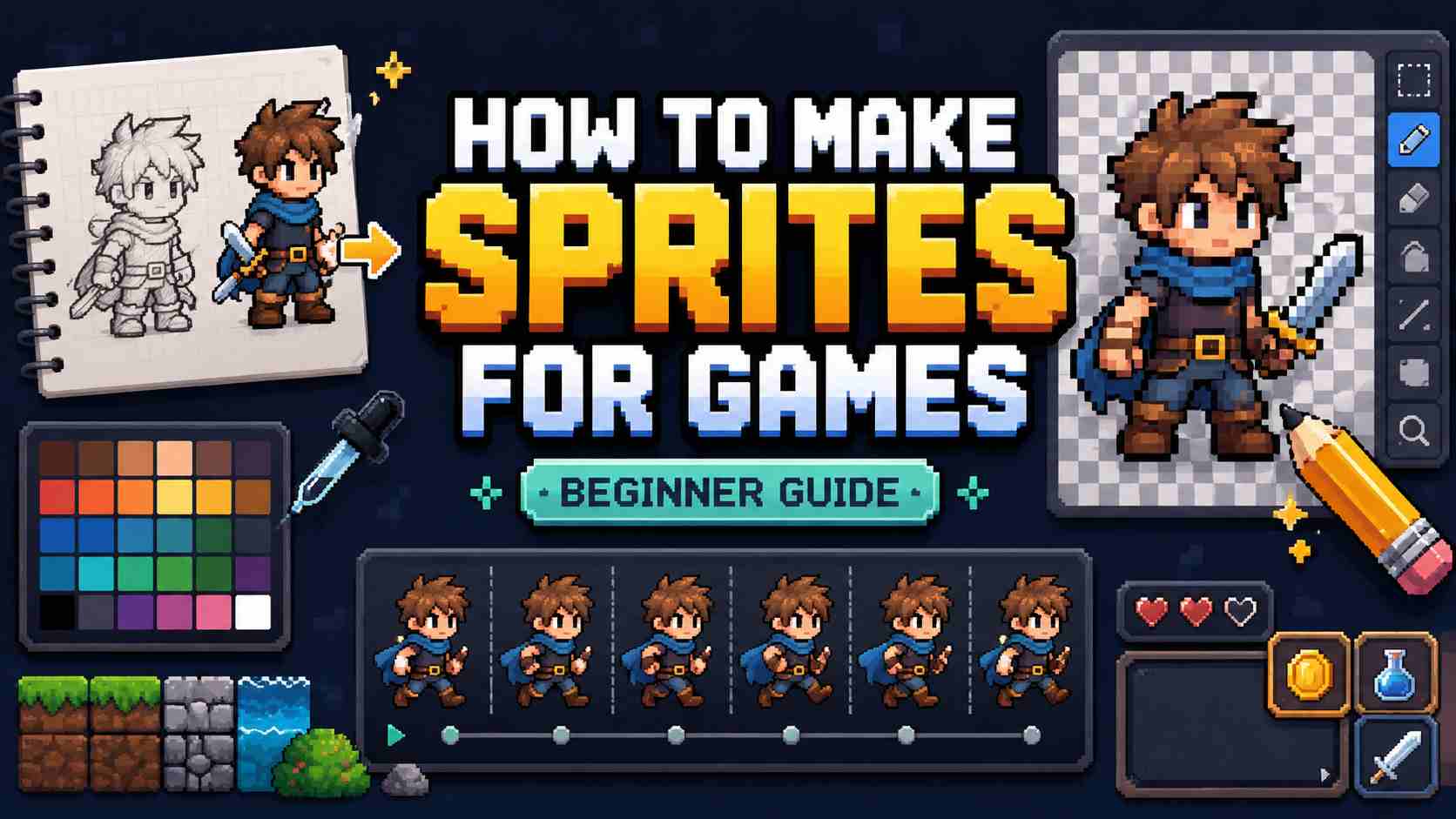
If you are learning how to make sprites for games, the hardest part is usually not drawing one character. It is understanding the whole path: what a sprite is, what size it should be, how animation frames work, how to find assets legally, and how to turn those assets into something you can actually play.
A game sprite is a 2D visual game asset used inside a game scene. It might be a player character, enemy, coin, button, tree, projectile, explosion, or background object. In many beginner games, sprites are the main building blocks of the world.
The good news is that you do not need to become a professional pixel artist before you can make a playable game. You can draw simple sprites, edit free assets, use a sprite editor, start from a reference, or use AI-assisted tools to explore ideas. The important thing is to make assets that are clear, consistent, and usable inside a game.
This guide walks through the beginner-friendly workflow: what sprites are, how to make or find them, how sprite sheets work, and how AI game makers can help you turn sprite ideas and character references into a playable browser game.
What Are Game Sprites?
A sprite is a 2D image that appears in a game. It can be moved, animated, swapped, scaled, or triggered by gameplay. A player standing still can be one sprite. A running character may be several sprites shown quickly in sequence. A coin, enemy, fireball, health icon, or menu button can also be a sprite.
Sprites are common in platformers, RPGs, puzzle games, arcade games, browser games, and mobile games. Even some 3D games use sprite-like 2D images for effects, icons, particles, and UI elements.
Sprite vs Sprite Sheet vs Tileset
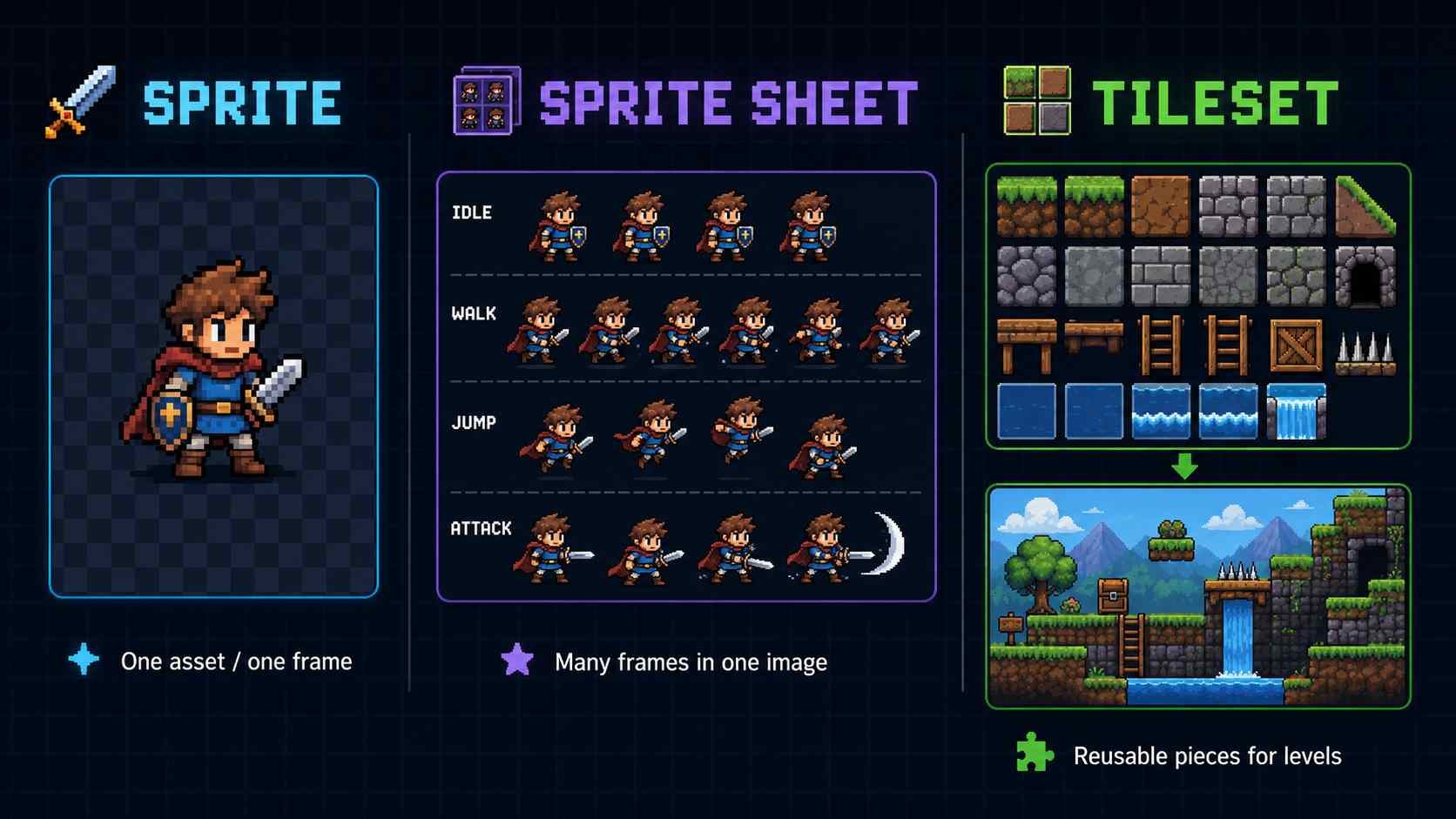
A sprite is one visual asset or one frame of an asset. A sprite sheet is one larger image that contains multiple frames or related sprites. For example, a character sprite sheet might include idle, walk, jump, attack, and damage frames arranged in rows. Aseprite's documentation describes a sprite sheet as one big image containing several frames of the same sprite, which can be horizontal, vertical, or arranged as a matrix.
A tileset is different. It is a collection of repeatable pieces used to build levels, such as grass blocks, stone floors, ladders, platforms, and water edges. A character sprite sheet and a tileset often appear in the same 2D game, but they solve different problems.
Do Sprites Have to Be Pixel Art?
No. Pixel art is popular for game sprites, but a sprite can also be hand-drawn, vector-style, painted, rendered from a 3D model, or generated as a flat 2D image. Pixel art works well for beginners because small canvases force simple decisions. A 32x32 character is easier to finish than a high-resolution illustrated hero with dozens of animation frames.
The best style depends on the game. A cozy game , horror platformer, classroom quiz game, and arcade shooter all need different visual choices. Your first goal is not perfect art. Your first goal is readable art that supports gameplay.
How to Make Sprites for Games: 4 Beginner Paths
If you are new to game sprites, you do not need to start with perfect art. The first goal is to make sprites that are clear, simple, and easy to recognize in the game. You can draw them yourself, use a browser editor, start from asset packs, or use AI-assisted references depending on your skill level and project goal.
1. Draw Your Own Game Sprites
Drawing your own sprites gives you the most control over the final look of your game. This method is best if you want to learn how sprites are built from scratch and keep your characters, enemies, items, and objects in one consistent style.
You do not need an advanced art setup. A beginner can start with a simple pixel art program such as Aseprite, LibreSprite, or any drawing tool that supports a pixel grid, layers, and transparent backgrounds. The most important features are a pencil tool, an eraser, zoom control, and the ability to export your sprite as a PNG.
Start small with a 16x16, 32x32, or 48x48 canvas. Use a limited color palette, focus on the silhouette first, and avoid tiny details that disappear when the sprite is moving.
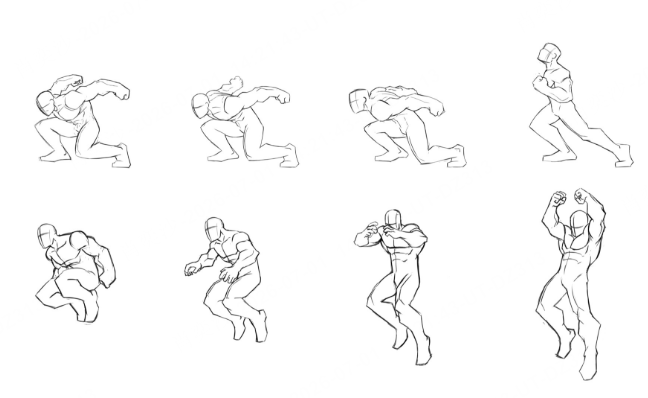
A simple workflow looks like this:
- Choose the sprite role: player, enemy, item, obstacle, or NPC.
- Pick a canvas size and perspective.
- Draw a bold silhouette in one dark color.
- Add two or three main colors.
- Add only the details players need to recognize.
- Test the sprite at actual game size.
- Create animation frames after the still pose works.
If your sprite looks messy, reduce the detail. Small sprites usually look better when they are bold, readable, and easy to recognize during gameplay.
2. Use a Browser Sprite Editor
If installing software feels confusing, a browser sprite editor is the easiest place to start. You can open the tool, create a small canvas, draw a sprite, preview the animation, and export the result without setting up a full art program.
Piskel, for example, describes itself as a free online editor for animated sprites and pixel art. It supports real-time animation preview and export options such as GIF, PNG, and spritesheet formats.
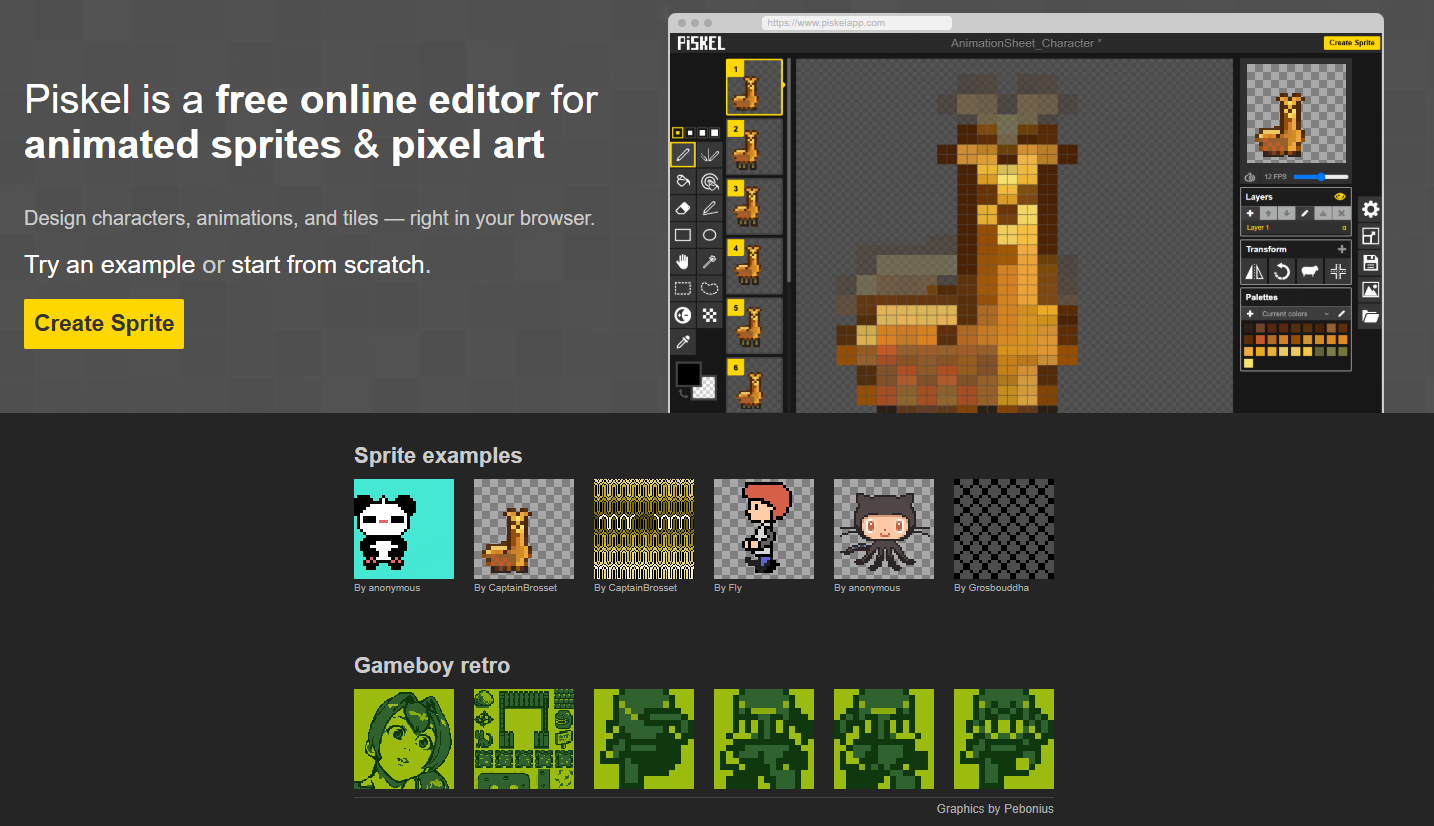
This type of tool is useful when you want to quickly make a simple player character, enemy, collectible, button, or tile. For example, you can draw a 32x32 slime enemy, duplicate the frame, move the body slightly, preview the bounce animation, and export it as a sprite sheet.
3. Start From Free or Paid Asset Packs
If you care more about testing gameplay than making original art, asset packs are often the fastest option. An asset pack is a collection of ready-made game assets, such as characters, enemies, tiles, backgrounds, UI buttons, music, and sound effects.
Sites such as OpenGameArt host free game assets, including sprites, tiles, music, and sound effects. Paid asset packs can also be useful when you want a more consistent style across your characters, environments, UI, and effects.
 Also Read
Asset packs are especially helpful for beginners because they let you focus on building the game first. You can test movement, combat, jumping, collecting, level design, and UI before spending time on custom art.
The important part is licensing. Free does not always mean no conditions. Some assets require attribution. Some allow commercial use. Some do not. Some require derivative work to use the same license. Before using an asset, save the asset page URL, author name, license, and attribution text in your project notes.
4. Use AI-Assisted References Carefully
AI can help beginners explore ideas before making the final sprite. For example, you can use AI to brainstorm character concepts, enemy shapes, item ideas, costume styles, color palettes, or mood boards. You might generate ideas for a tiny forest wizard, a floating robot, a slime enemy, or a magical sword, then use the best direction as a visual reference.
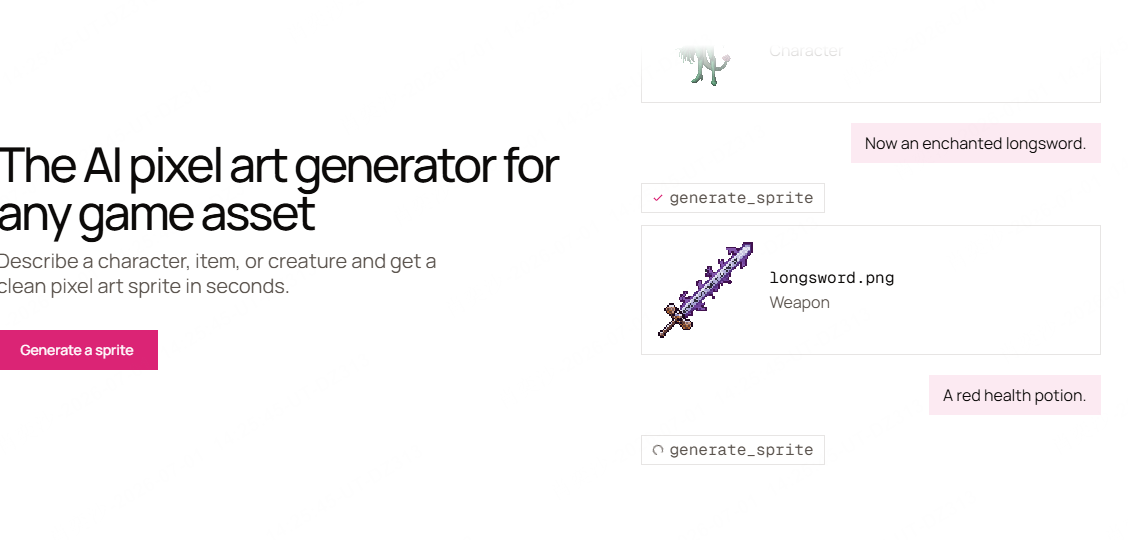
However, AI output should not automatically become your final game sprite. Many AI images are too detailed, inconsistent, or hard to animate. A good game sprite needs clean shapes, readable details, transparent background, consistent size, and aligned animation frames.
For beginners, AI is most useful before the sprite sheet stage. Use it to decide what the character could look like, then simplify the idea into a clean sprite that works at a small size. Always check whether your AI workflow fits your project's legal, commercial, and platform requirements.
How to Design a Sprite That Works in a Game
A sprite can look good in an art editor and still fail in a game. Gameplay adds movement, scale, background contrast, collision, and player attention. Design the sprite for the game screen, not just for the canvas.
Start with the role. A player sprite should be recognizable instantly. An enemy should look dangerous or clearly different from friendly characters. A collectible should invite the player to grab it. A hazard should be obvious before the player touches it.
Next, choose a consistent size and perspective. Common beginner sizes include 16x16, 24x24, 32x32, 48x48, and 64x64 pixels. Smaller sprites are faster to make, while larger sprites allow more detail but take longer to animate. A side-view platformer character should not be mixed with top-down enemies unless that contrast is intentional.
Finally, check the silhouette. A good sprite can often be understood as a dark shape. If the character's pose, weapon, head, or body direction disappears when you fill it with one color, simplify the design. Players glance, react, and move. They do not inspect sprites like still illustrations.
How to Make a Sprite Sheet?
If you're new to game development, you might wonder what a sprite sheet actually is. A sprite sheet is a single image that contains every frame of a character's animation. Instead of loading dozens of separate images, the game reads different parts of one image to create movement.
For example, imagine your character has four walking poses. Rather than saving four separate PNG files, you place all four frames side by side in one image. When the game plays the animation, it simply shows Frame 1, Frame 2, Frame 3, and Frame 4 in order.
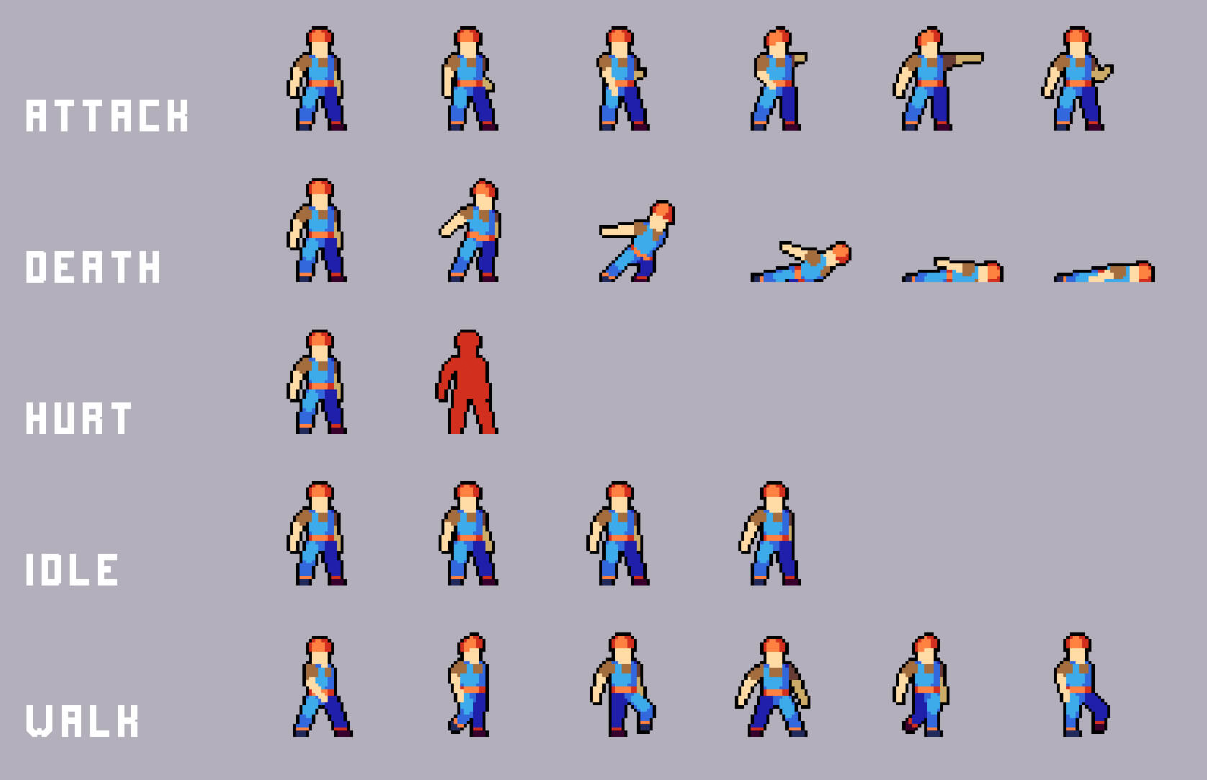
Creating a basic sprite sheet is straightforward:
- Finish drawing all the animation frames for one action, such as walking.
- Make sure every frame uses the same canvas size.
- Place the frames in a single row or column with consistent spacing.
- Align the character in the same position across every frame so the animation doesn't "jump."
- Export the finished sheet as a transparent PNG.
As your game grows, you can organize multiple animations in one sprite sheet. For example, the first row might contain idle frames, the second row walking, and the third row attacking. Most game engines and sprite editors can automatically split the sheet back into individual frames when you import it.
After exporting the sprite sheet, import it into your game engine or sprite editor and preview the animation. If the character appears to shake, slide, or change size between frames, go back and adjust the alignment before adding more animations.
How to Find Sprites You Can Actually Use
You can find game sprites from free asset libraries, paid asset packs, creator marketplaces, or open game art communities. For beginners, the easiest option is to start with a small asset pack that already includes characters, enemies, tiles, and UI in the same style.
Before you use any sprite in your game, check the license. OpenGameArt's FAQ says commercial developers can use art from the site, but they must follow the license terms. This is a good rule for every asset library: do not assume an asset is free to use just because it is free to download.
Before downloading or importing sprites, check these details:
- Can you use the asset in a commercial project?
- Do you need to credit the creator?
- Are you allowed to edit or recolor the sprite?
- Does the asset include the format you need, such as PNG or a sprite sheet?
- Does the style match the rest of your game?
It is also a good idea to save the asset page URL, creator name, license, and attribution text in your project notes. This small habit can save you trouble later if you publish the game or need to update your credits page.
Finally, watch for style consistency. A polished knight, a cartoon slime, a realistic forest, and a neon sci-fi UI may all look good separately, but they can feel strange together in one game. For a first playable version, one simple and consistent style is better than a mix of impressive but mismatched assets.
How to Turn Game Sprites Into a Playable Game With SoonLab
Making sprites is only half the journey. The real test is whether those sprites make sense in a playable game.
SoonLab can fit into this stage as an AI game maker workflow for beginners who have character concepts, sprite ideas, or asset references and want to turn them into a browser-playable game. Instead of waiting until every asset is polished, you can use your visual direction to shape a simple game scene, test the character role, and see whether the idea feels fun.
A practical SoonLab workflow could look like this:
- Write a clear prompt that describes your game idea, character, goal, controls, and core gameplay.
Turn your idea into aplayable game
Describe the game you want to make, and SoonLab will help you start building it.
- Upload sprites that match the game style, such as a character, enemy, item, tile set, or sprite sheet.
- Generate a playable browser game with SoonLab based on your prompt and uploaded sprites.
- Play, edit, and share the game. Adjust the prompt or sprites if needed, then publish it when the gameplay feels clear.
This is a healthy beginner workflow because it keeps art and gameplay connected. A beautiful sprite is useful, but a sprite that helps you test a real game idea is more valuable.
SoonLab should not be treated as a replacement for dedicated pixel art tools like Aseprite or browser editors like Piskel. Those tools are still useful for detailed drawing, frame cleanup, and sprite sheet editing. SoonLab's stronger angle is helping you move from idea and asset references toward a playable prototype, so you can find out what the game needs next.
FAQs
What is a sprite in a game?
A sprite is a 2D image or animation used inside a game. It can represent a player, enemy, object, item, projectile, effect, or UI element. In many 2D games, sprites are the visible pieces that move and react on screen.
How do I make sprites for games if I cannot draw?
Start with simple shapes, small canvases, and limited colors. You can also use beginner-friendly sprite editors, free asset packs, paid asset packs, or AI-assisted references. For a first prototype, readable placeholder art is better than waiting for perfect art.
What size should game sprites be?
Common beginner sprite sizes include 16x16, 24x24, 32x32, 48x48, and 64x64 pixels. Smaller sprites are faster to create, while larger sprites allow more detail. Choose one size system and keep it consistent across your game.
What is a sprite sheet?
A sprite sheet is one image that contains multiple sprite frames or related assets. For example, a character sprite sheet might include idle, walking, jumping, and attack frames. Games use sprite sheets to organize and display animations efficiently.
Can I use free sprites in a commercial game?
Sometimes, but you must check the license. Some free sprites allow commercial use with attribution. Others have share-alike, redistribution, or platform restrictions. Always save the asset source, creator, license, and attribution text before publishing.
How can SoonLab help with game sprites?
SoonLab can be positioned as a way to turn sprite ideas, character concepts, and asset references into a playable browser game. It is useful for testing how a sprite concept works in gameplay, while dedicated art tools remain useful for detailed sprite editing and cleanup.
Final Thoughts
Learning how to make sprites for games is really learning how to turn visual ideas into playable objects. You can draw sprites from scratch, use a browser editor, start from asset packs, or explore AI-assisted concepts. What matters most is that your sprites are clear, consistent, legally usable, and tested in the game itself.
For a beginner, the best next step is simple: create one character sprite, one object to collect or avoid, and one small scene. Then put them into a playable prototype. Once the game feels worth improving, you can return to the art with much better decisions.
SoonLab can help with that bridge from sprite idea to playable browser game, especially when you want to test a character concept before investing days into polished animation. Start small, keep the sprite readable, and let the prototype tell you what the art needs next.